Building a Vim Setup Worth Using
A walk through my .vimrc, one setting at a time — what each option actually does — then a plugin manager, autocompletion, a file tree and a status line.

Vim is a highly configurable text editor, built to make creating and changing any kind of text very efficient.
Is Vim a good editor?
Vim is highly configurable, and it is genuinely built for developers and operations people. We want an editor that is quick: a modern IDE takes a minute or two to load depending on the machine, and usually needs additional packages downloaded before it works efficiently.
Working with Vim and ~/.vimrc
There are four things to cover to make Vim more interactive:
- Sets
- A plugin manager
- Plugins
- Remaps

The settings
Let’s start with a more capable .vimrc:
vim ~/.vimrc
" Add these lines inside the file

syntax on

set noerrorbells
set tabstop=4 softtabstop=4
set shiftwidth=4
set expandtab
set smartindent
set nu
set nowrap
set smartcase
set noswapfile
set nobackup
set undodir=~/.vim/undodir
set undofile
set incsearch

set colorcolumn=80
highlight ColorColumn ctermbg=0 guibg=lightgrey

:source %
:wq!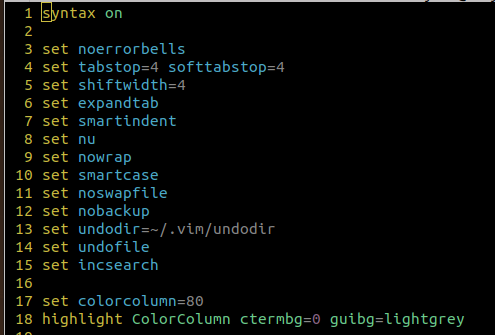
Here is what each of those does.
syntax on
Gives you basic highlighting, which works with a lot of languages. You may still need an extension for full support of a given language.
set noerrorbells
No beep when an error message is displayed.
set tabstop=4 softtabstop=4
tabstop makes a tab four characters long; softtabstop makes it four spaces long.
set shiftwidth=4
Sets tab stops every four spaces, and makes the amount we indent four spaces.
set expandtab
Converts tab characters to spaces.
set smartindent
Lets Vim do its best to indent for you.
set nu
Line numbers.
set nowrap
Without this, a line that runs off the screen continues on the next one. I would rather it just run off.
set smartcase
Applies only to search patterns you type: a lowercase search is case-insensitive, but the moment you type a capital, the search becomes case-sensitive.
set noswapfile
Disables swap files from within Vim.
set nobackup
Prevents new backup files from being created.
set undodir=~/.vim/undodir
Tells Vim to keep its undo history. This happens to me a lot — I save a file and then need to undo, and Vim will not let me. With this set, the directory has to exist:
mkdir ~/.vim/undodir -p
ls ~/.vim
set undofile
Saves the undo history after the file closes.
set incsearch
Searches incrementally. Vim starts searching when you type the first character of the search string and refines as you type more.
set colorcolumn=80
Highlights anything that runs past column 80.
:source %
Sources the file you are in — sourcing a file means executing it.
That covers the settings. The editor is already better, but there are more treasures to uncover.
Plugins and autocompletion
We need an installer and a plugin manager to do the interesting things:
curl -fLo ~/.vim/autoload/plug.vim --create-dirs \
    https://raw.githubusercontent.com/junegunn/vim-plug/master/plug.vim
Then open ~/.vimrc and add the following. These are all the plugins I have tried:
call plug#begin('~/.vim/plugged')
Plug 'Shougo/deoplete.nvim', { 'do': ':UpdateRemotePlugins' }
Plug 'scrooloose/nerdtree'
Plug 'scrooloose/nerdcommenter'
Plug 'altercation/vim-colors-solarized'
Plug 'itchyny/lightline.vim'
" call PlugInstall to install new plugins
call plug#end()

" basics
filetype plugin indent on
syntax on
"set nu
"set relativenumber
set incsearch
set ignorecase
set smartcase
set nohlsearch
set tabstop=2
set softtabstop=0
set shiftwidth=4
set expandtab
set nobackup
set noswapfile
set nowrap
set cursorcolumn
set cursorline

let mapleader = "\<Space>"
" navigate split screens easily
nmap <silent> <c-k> :wincmd k<CR>
nmap <silent> <c-j> :wincmd j<CR>
nmap <silent> <c-h> :wincmd h<CR>
nmap <silent> <c-l> :wincmd l<CR>

nmap <C-_>   <Plug>NERDCommenterToggle
nmap <C-_>   <Plug>NERDCommenterToggle<CR>gv

" solarized
syntax enable
set background=dark

" deoplete
let g:deoplete#enable_at_startup = 1
" use tab to cycle forward
inoremap <silent><expr><tab> pumvisible() ? "\<c-n>" : "\<tab>"
" use shift-tab to cycle backward
inoremap <silent><expr><s-tab> pumvisible() ? "\<c-p>" : "\<s-tab>"
" close the documentation window when completion is done
autocmd InsertLeave,CompleteDone * if pumvisible() == 0 | pclose | endif

" NERDTree
" close vim if the only window left open is a NERDTree
autocmd bufenter * if (winnr("$") == 1 && exists("b:NERDTree") && b:NERDTree.isTabTree()) | q | endif
" toggle NERDTree
map <C-n> :NERDTreeToggle<CR>
let g:NERDTreeChDirMode=2
let g:NERDTreeIgnore=['\.rbc$', '\~$', '\.pyc$', '\.db$', '\.sqlite$', '__pycache__', 'node_modules']
let g:NERDTreeSortOrder=['^__\.py$', '\/$', '*', '\.swp$', '\.bak$', '\~$']
let g:NERDTreeShowBookmarks=1
let g:nerdtree_tabs_focus_on_files=1
let g:NERDTreeMapOpenInTabSilent = '<RightMouse>'

if has('persistent_undo')        " check if your vim version supports it
    set undofile                 " turn on the feature
    set undodir=$HOME/.vim/undo  " where the undo files are stored
endif

:source %
:PlugInstall
If sourcing gives you an error, install from outside Vim instead:
vim -c 'PlugInstall'There is still a lot to learn, but this is my .vimrc and the tips I have picked up so far.
What each plugin gives you
Deoplete — autocompletion
Plug 'Shougo/deoplete.nvim', { 'do': ':UpdateRemotePlugins' }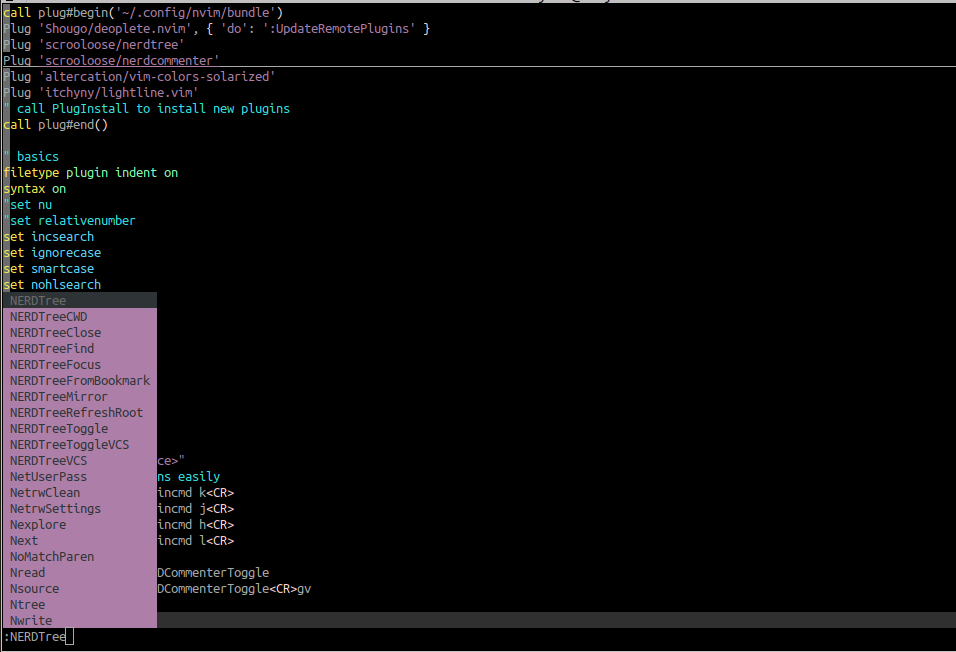
NERDTree — a file tree
For moving around multiple directories inside Vim.
Plug 'scrooloose/nerdtree'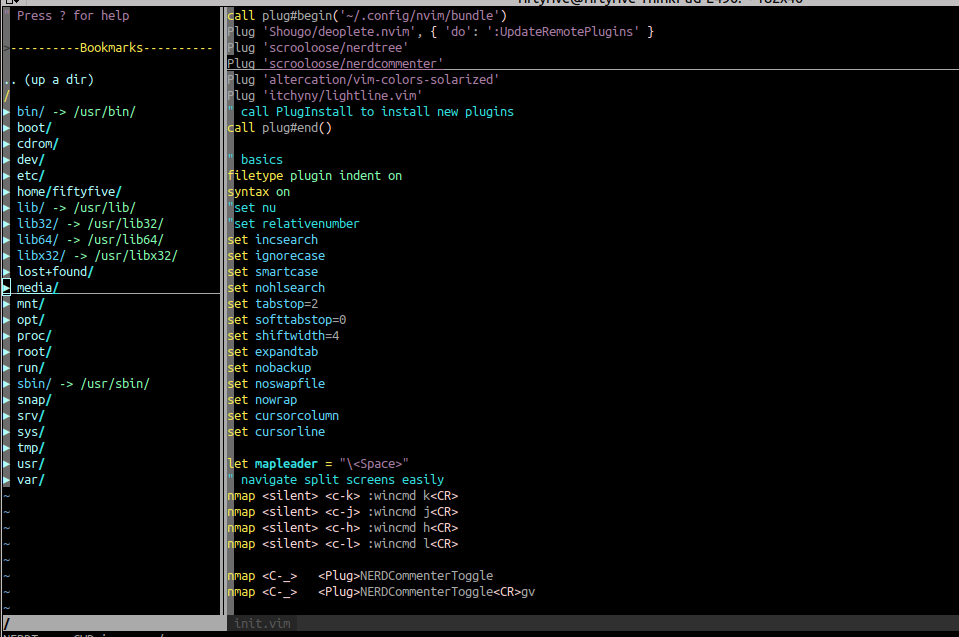
NERDCommenter — comment a block
Comments all selected lines with ctrl + /.
Plug 'scrooloose/nerdcommenter'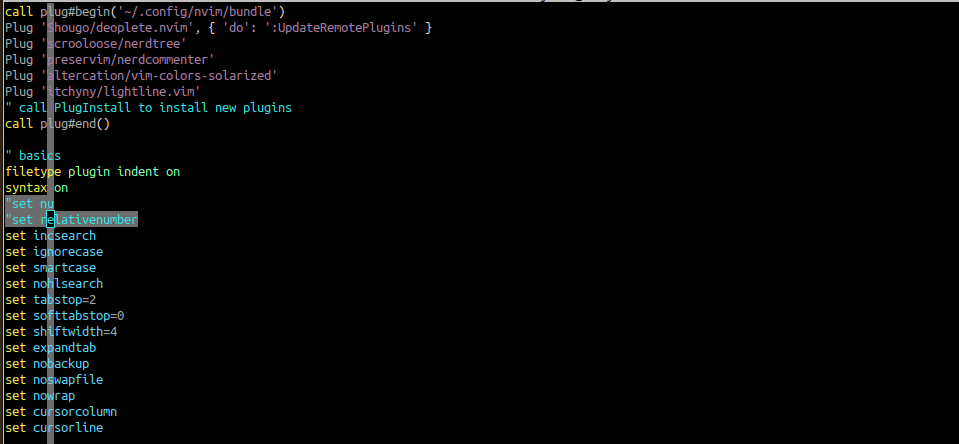
Solarized — the colour scheme
All the colour you can see in my Vim.
Plug 'altercation/vim-colors-solarized'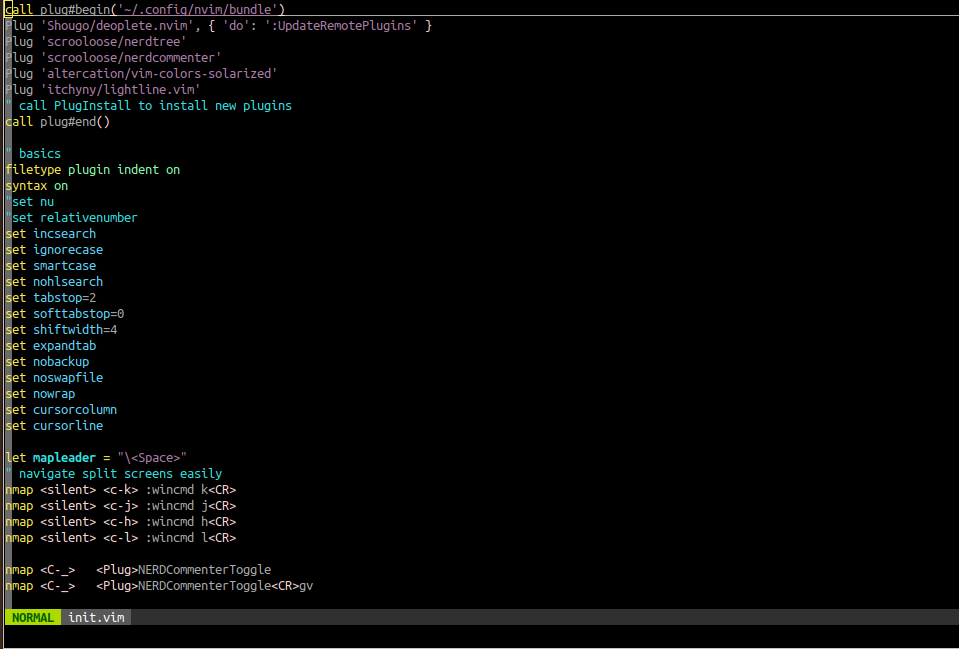
Lightline — the status line
The mode line along the bottom.
Plug 'itchyny/lightline.vim'
I will cover how to use these plugins, and how to map leader keys, in a later post.