Managing Docker from a Browser with Portainer
Docker has a lot of commands to remember, and forgotten containers quietly eat disk and memory. Portainer puts the whole daemon behind a UI you can run with one command.

This post assumes you already have Docker installed and that your user is part of the docker group.
A quick word on Docker
Docker is the de facto standard for building and sharing containerised apps, from the desktop to the cloud. It separates your applications from your infrastructure so you can ship software quickly, and lets you manage that infrastructure the same way you manage the applications themselves.
These are the basic commands you would run to manage it from a terminal:
# Check the images you have pulled
docker images

# Check the running containers
docker ps

# Check every container, including stopped ones
docker ps -a

# Delete a container — replace with your container ID
docker rm <containerId>

# Delete a pulled image
docker rmi <imageName>:<tagName>
And there are plenty more for starting, stopping and otherwise managing containers.
The problem beginners run into
You write a Dockerfile and a docker-compose.yml, bring the containers up, and then forget to remove them. They keep running in the background, quietly costing you memory and storage you are not aware of.
Tools that help
I still prefer the CLI for configuring Docker, but not everyone wants to memorise the commands, and managing Docker purely from the terminal gets awkward. Two tools stand out:
- Rancher
- Portainer
Both are good at what they do. What follows is the local-environment scenario — running containers and managing networks and volumes graphically. You can launch a container in a click, and the best part is that you do not have to write a Dockerfile to do it.
Setting up Portainer
One command, from your terminal or PowerShell:
docker run -dit --name portainer -p 7777:9000 \
  -v /var/run/docker.sock:/var/run/docker.sock portainer/portainer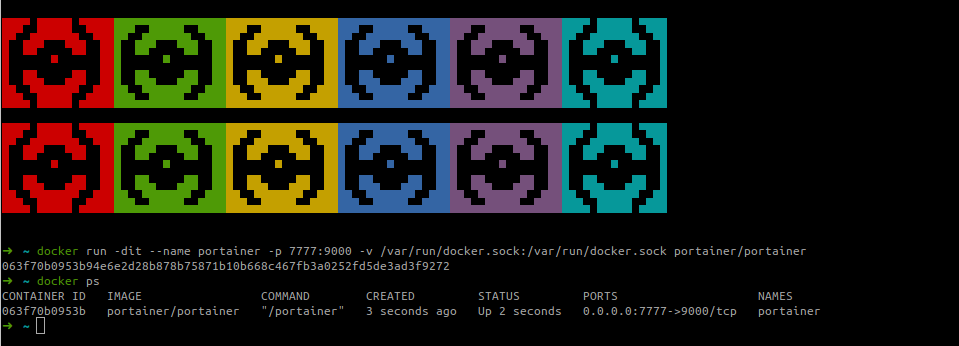
That is the whole install. Now to the UI.
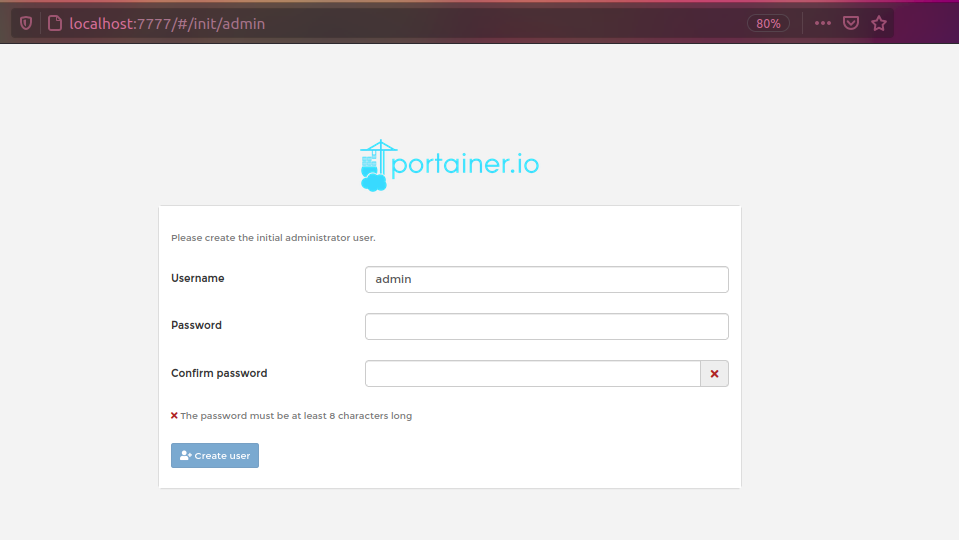
Setting the credentials
You are asked for credentials on first run. Portainer can also be managed with policies and ACLs, which I am not covering here — but it can be done.
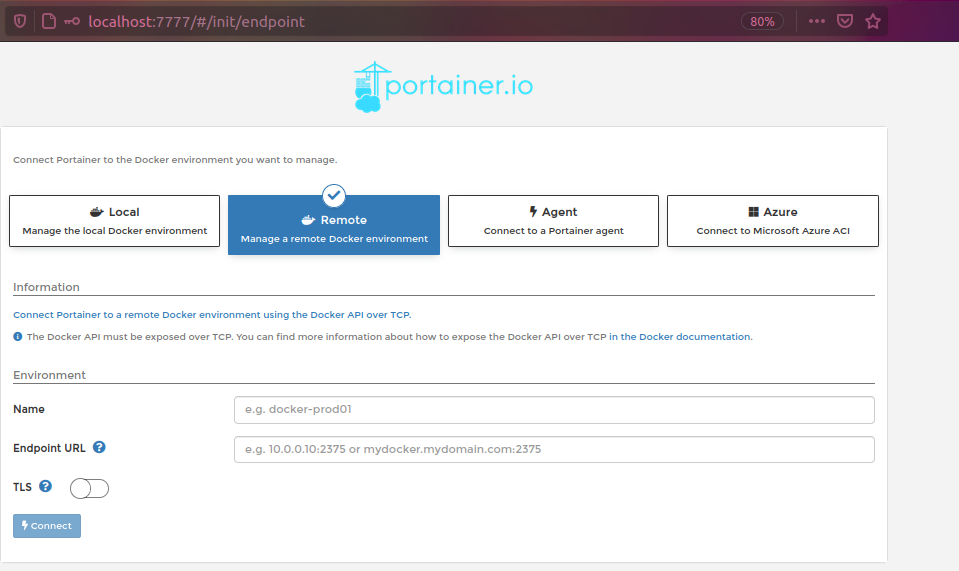
Connecting to a remote machine
You can point Portainer at containers on another machine, which means managing several systems’ containers from one web UI.
Connecting to the local environment
We will set up the local environment first.
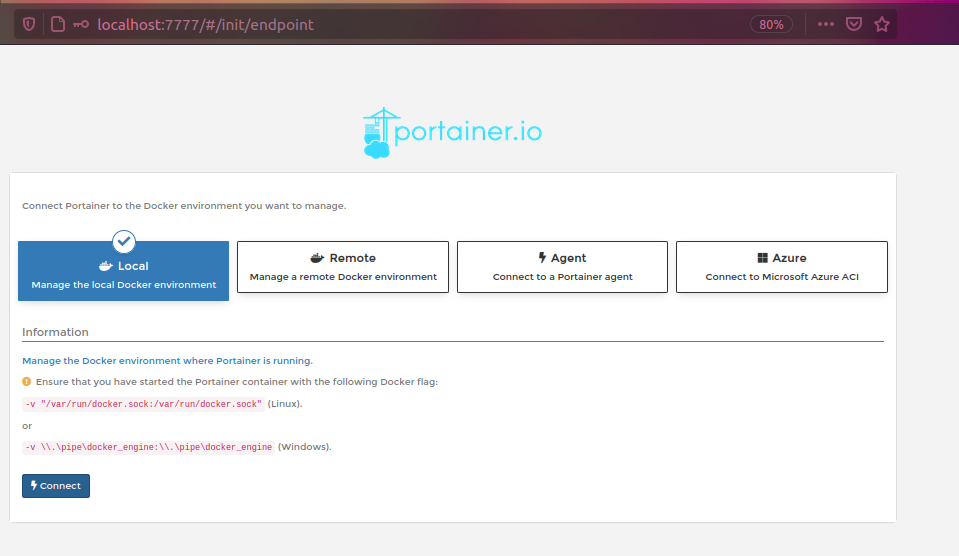
Click Connect.
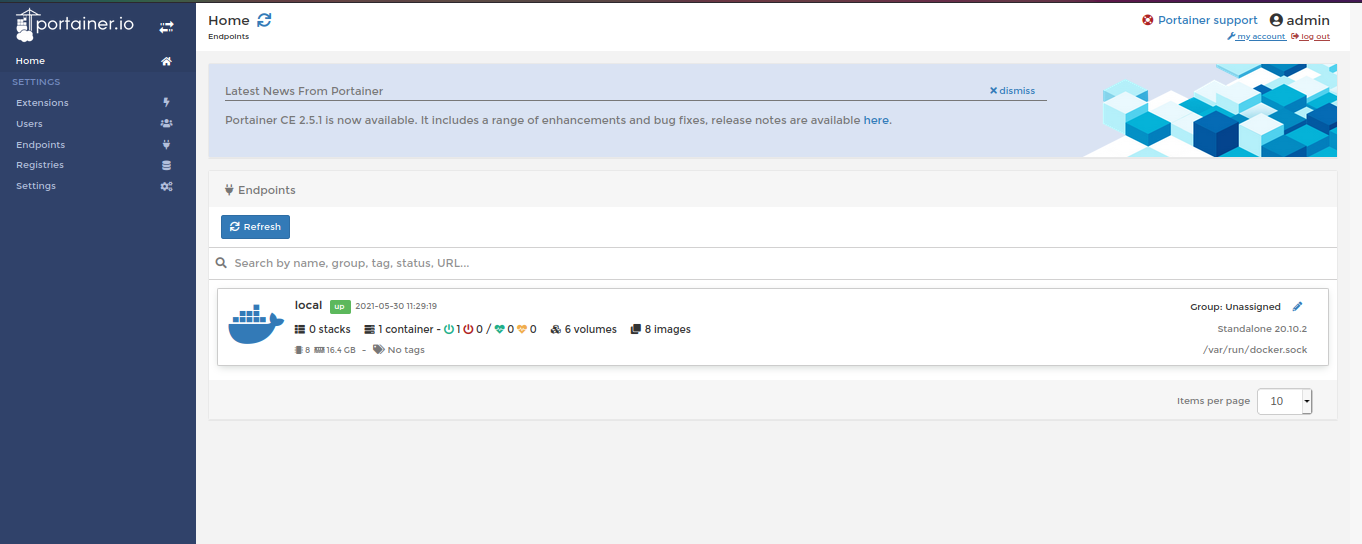
The dashboard
Now everything is set up, so let’s explore.
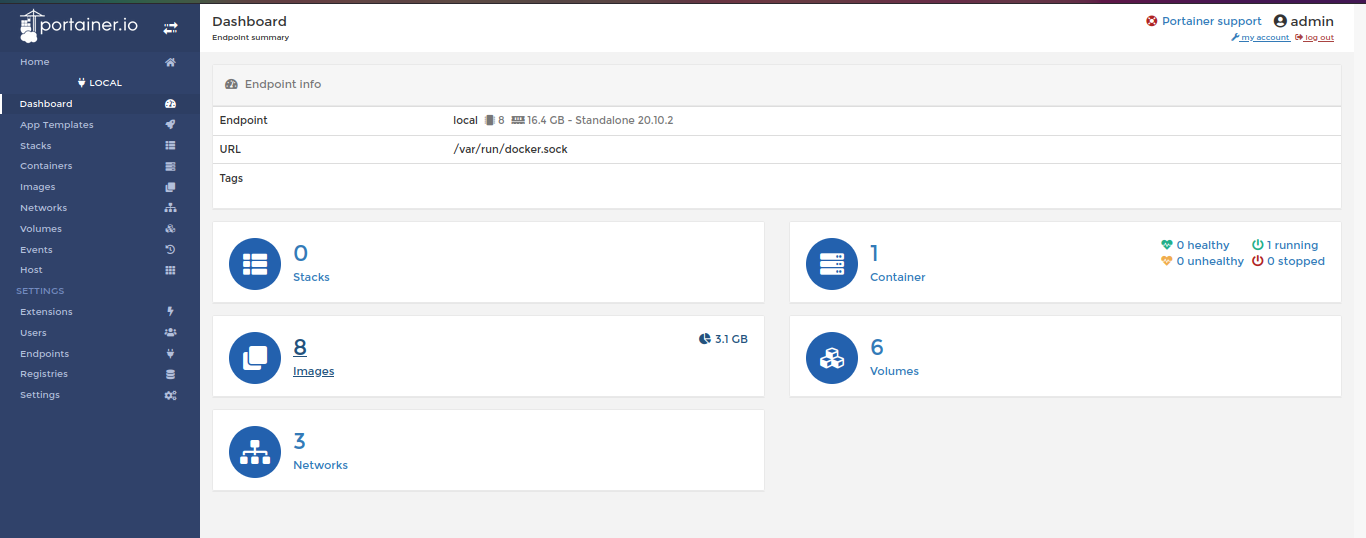
As you can see, I have 8 images, 6 volumes and 1 container — which is Portainer itself.
Creating containers
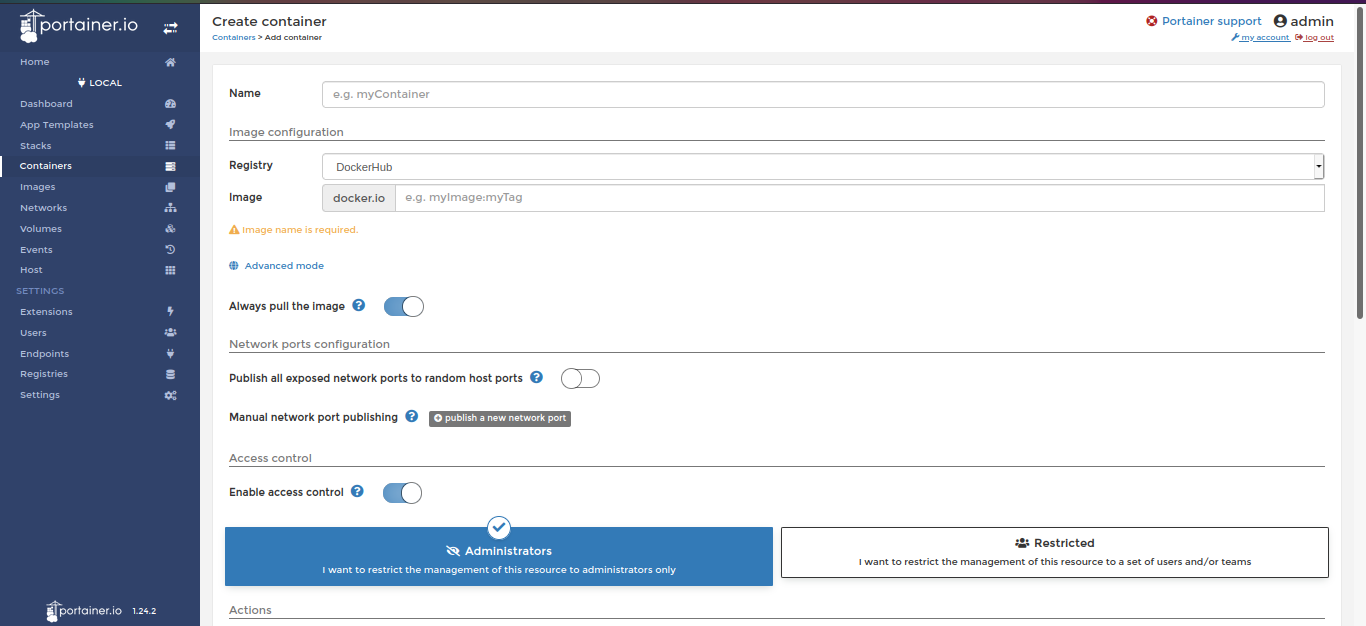
Creating a new container:
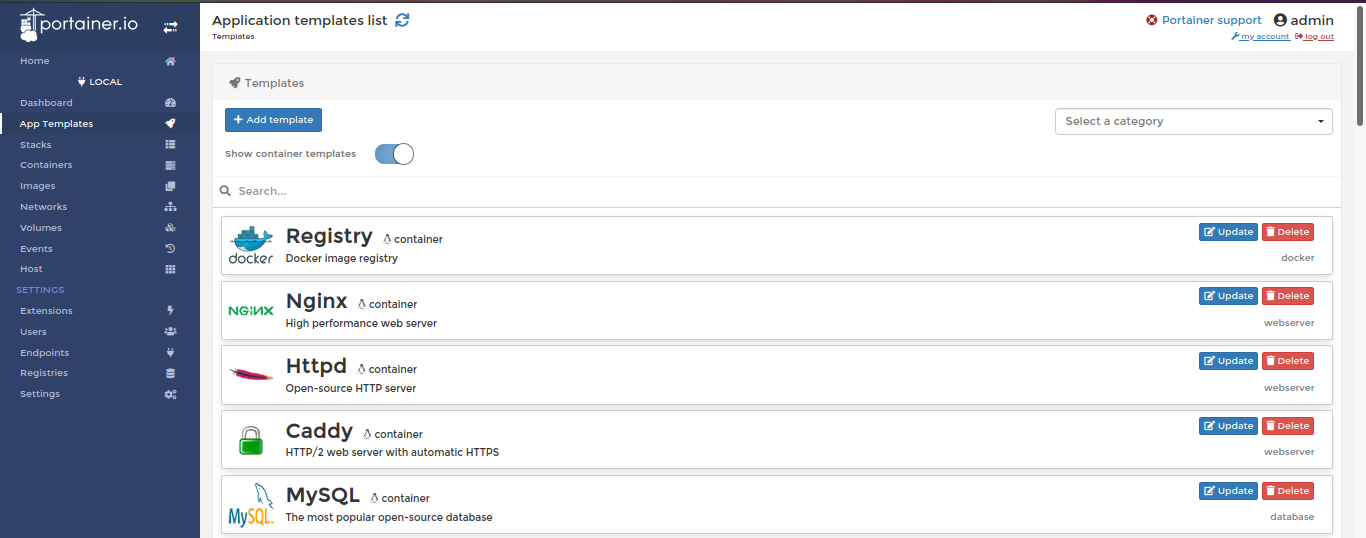
Creating one from a template:
I will write up Portainer versus Rancher soon.