Sending a File Inside ICMP Echo Requests with hping3
Ping looks like a connectivity check, but an echo request has a payload — and you can put whatever you like in it. Smuggling a text file between two VMs, then pulling it back out with tcpdump and tshark.

ping is the primary TCP/IP command used to troubleshoot connectivity, reachability and name resolution. It sends a request over the network to a specific device; a successful ping results in a response from the pinged machine back to the originating one.
According to its author, the name comes from sonar terminology. In sonar, a ping is an audible sound wave sent out to find an object. If the sound hits the object, the waves reflect — echo — back to the source, and the distance and location of the object can be worked out by measuring the time and direction of the returning wave.

When a ping command is issued, an echo request packet is sent to the address specified. When the remote host receives it, it responds with an echo reply packet.
The ping utility
The ping utility has been built into virtually every operating system with network support. Echo request and echo reply are ICMP messages.
In its simplest form, ping needs nothing more than the command and a destination, specified either by name or by address:
ping 192.168.1.107 # a private address on your network

# You can check your networks and addresses with
ip a s
# or
ip addr show

# ifconfig comes preinstalled on many desktops; if not, install net-tools
ifconfig

# Ping by name
ping google.com
What if we want to manipulate the data ping sends?
Say we want to send a file from one system to another over the network, through an ICMP tunnel.
hping3
hping3 makes the construction and transmission of a crafted packet transparent to the user. It assembles and sends custom ICMP, UDP and TCP packets, and displays the target’s replies much the way ping displays ICMP replies.
You need two VMs running any Linux flavour. I am using Fedora and Ubuntu for this demonstration. Both VMs must be on the same network — I am using a router.
Crafting a file to send
Boot the Fedora machine and install hping3:
yum install hping3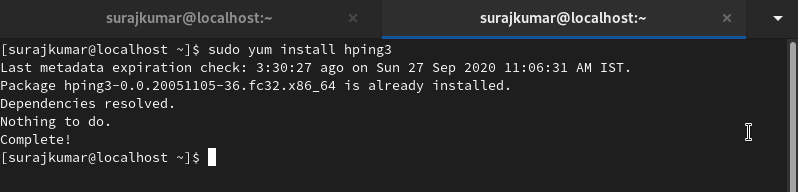
Create the file that will become the payload:
cat <<EOF >$(pwd)/hello.txt
Hey world, this is YourName.
I will be sending this data over the network using Internet Control Message Protocol.
EOF
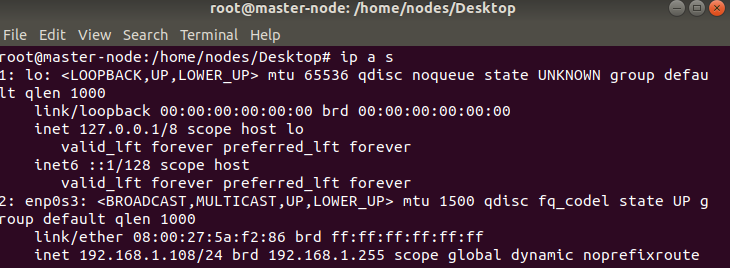
Before sending anything, make sure both systems are connected over a bridged or host-only network and can ping each other. Get the address of each VM:
ifconfig      # if this is not installed, use one of the below
ip addr show
ip a s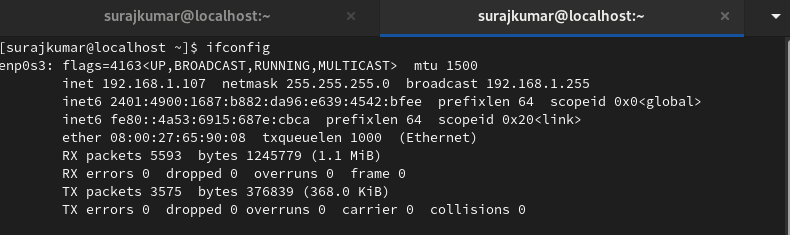
Start tcpdump on the Ubuntu system so it can capture the packets:
tcpdump -i enp0s3 'icmp and src host <your address here>'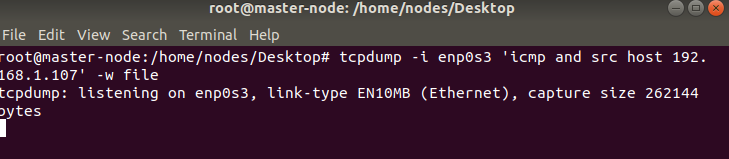
Now send the file with hping3 and capture it with tcpdump:
# On the Fedora machine
sudo hping3 -1 -E ./hello.txt -u -d 1500 192.168.1.108
# -1  send ICMP requests
# -E  the file whose contents become the payload
# -u  tell the user when the transfer is complete
# -d  the size of the packet
# You will see "EOF reached" on the sending system when it is done

ctrl+c # stop sending

# On the Ubuntu machine
sudo tcpdump -v -l enp0s3 'icmp and 192.168.1.107' -w file
ctrl+c # stop once the transfer finishes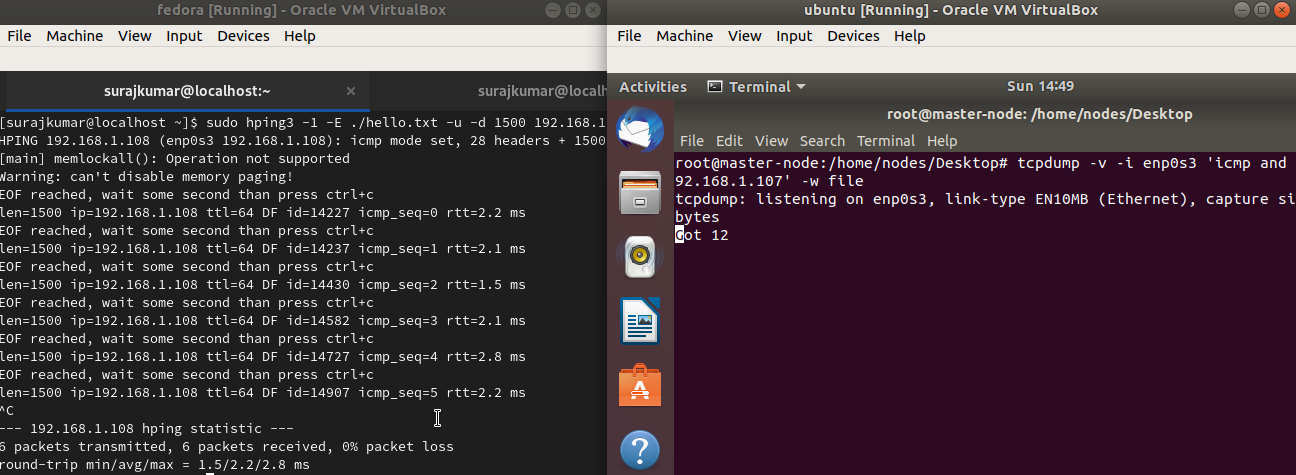
To look inside the captured file, install Wireshark:
sudo apt install wireshark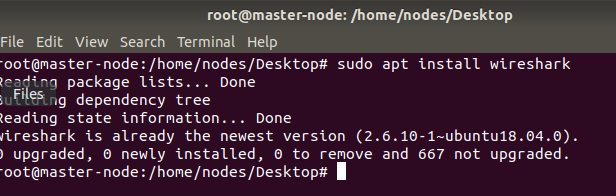
Then open the capture:
wireshark file&
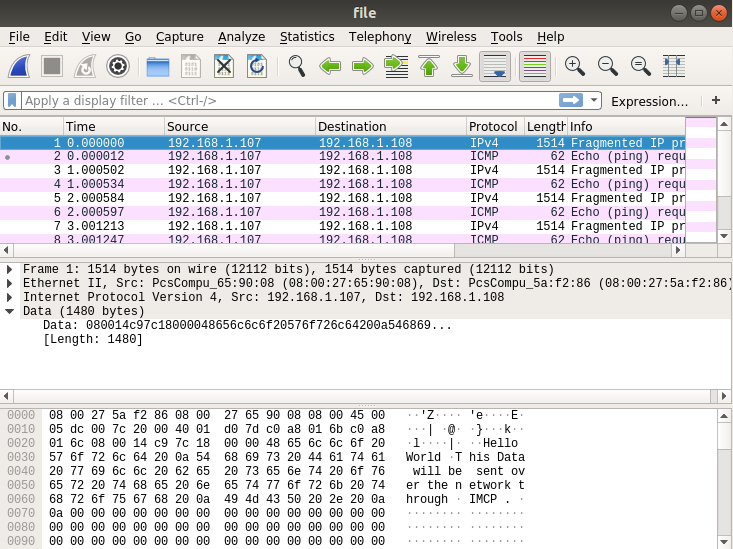
The GUI appears:
Why the packets are fragmented
Look at the packet list and you will see the ICMP data has been fragmented. The reason is the MTU — maximum transmission unit. You can check the MTU of the link with ifconfig:
ifconfig
# enp0s3: flags=4099<UP,BROADCAST,MULTICAST>  mtu 1500
The ICMP header overhead is 14 bytes of Ethernet header + 20 bytes of IP header + 8 bytes of ICMP header = 42 bytes, which leaves 1500 − 42 = 1458 bytes of ICMP data in a single packet. We asked hping3 for 1500 bytes with -d, so the datagram has to be fragmented.
Look at the packet detail pane and you can see the data carried in the ICMP section, and inside that the data field holding the original content.
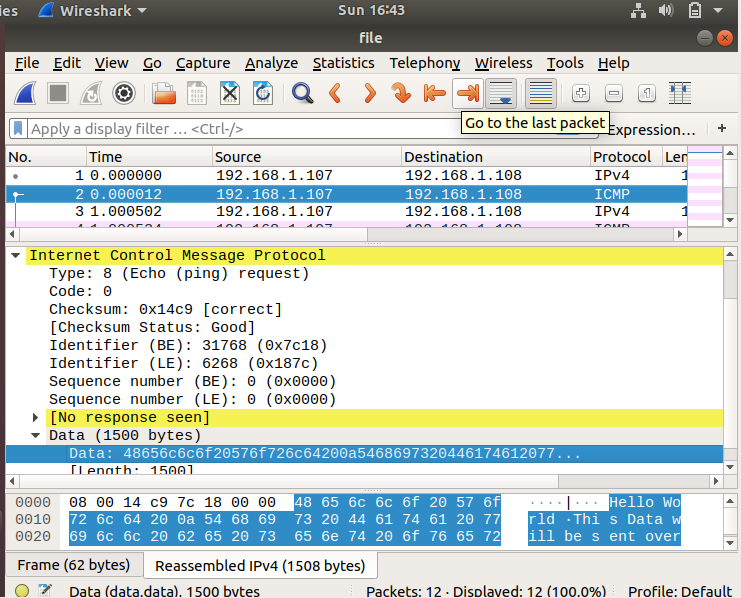
Extracting the payload
tshark can pull the data.data field straight out of the capture:
sudo apt install tshark

sudo tshark -n -q -r file -T fields -e data.data | tr -d "\n" | tr -d ":" > hex.txt
# -n  disable network object name resolution
# -q  quiet mode
# -r  read packet data from the given file
# -T  set the format of the decoded output
# -e  add a field to the list of fields to display
# The output is piped to tr, which strips the newlines and colons,
# and the result is saved to hex.txt
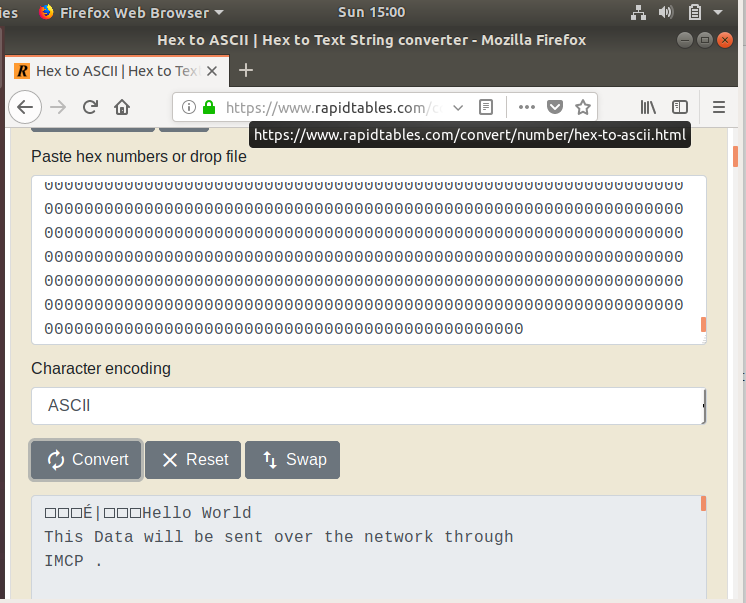
Paste that hex into any hex-to-text converter, or upload hex.txt, and you get the file back: